Customer support escalation matrix template
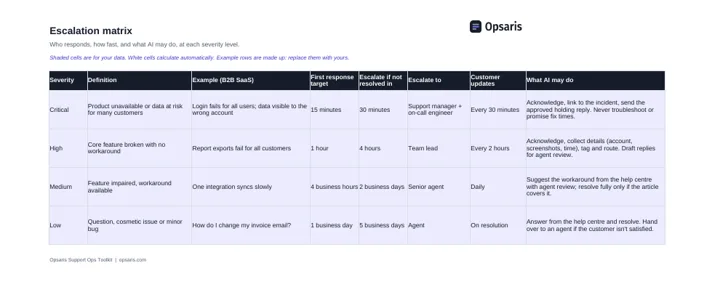
A free Excel template that sets out, for each severity level, how fast you respond, when to escalate, who to escalate to, how often customers hear from you, and what AI tools may and may not do.
Excel workbook. No sign-up. Free to use and adapt inside your organisation.
What an escalation matrix is for
An escalation matrix removes guesswork when something goes wrong. Instead of each agent deciding how urgent a ticket is and who to tell, everyone works from the same short table. That means faster responses on the tickets that matter, fewer missed handoffs between shifts, and customers who hear from you on a predictable schedule.
It's also one of the first documents any AI tool in your help desk needs. If AI is going to triage, prioritise or reply to tickets, it has to follow the same rules your team does.
What's in the template
- Four severity levels (Critical, High, Medium, Low), each with a plain-English definition and a B2B software example.
- First response targets and when to escalate if a ticket isn't resolved.
- Who to escalate to at each level, from agent to on-call engineer.
- How often to update customers, so nobody is left waiting without news.
- What AI may do at each level: for example, acknowledge and gather details on a Critical incident, but never troubleshoot or promise fix times.
How to adapt it in 30 minutes
- Rewrite the definitions in your own words. Use examples from your product that your team will recognise instantly.
- Check the targets against your contracts. If customers have SLAs, the matrix must match them exactly, and be tighter for your largest accounts if needed.
- Put names or rotas in the escalation column. "Engineering" isn't a contact; "the on-call engineer via the incident channel" is.
- Decide the AI rules with your team. Be most cautious at the top: AI can acknowledge a critical incident, but a person should own it.
- Share it and test it. Walk through two or three recent tickets and check everyone would have handled them the same way.
Common mistakes
- Too many levels. Four is plenty. With six, agents argue about the difference between levels 3 and 4.
- Severity based on how loud the customer is. Base it on impact: how many customers, how much of the product, and whether there's a workaround.
- No update frequency. Customers forgive slow fixes far more readily than silence.
Questions
What's the difference between severity and priority?
Severity is the impact of the problem itself. Priority is the order you work on things, which can also depend on the customer, deadlines or contracts. This template covers severity; most teams set priority from it.
Does this work with Zendesk, Freshdesk or HubSpot?
Yes. It's a reference document, so it works with any help desk. Many teams then mirror the levels as ticket priorities and SLA policies in their tool.
Want the rest of the toolkit?
This template is one of 11 in the Support Ops Toolkit, free with your email address. Already using an AI agent? The free resolution checker shows how many of its resolutions really held.
Not sure where your gaps are? Take the free 5-minute assessment.
More free templates
Written by Chris Barber, who runs a technical support team at a B2B software company.